Employees
Request leave, check your balance and payslip, and ask for a salary letter from your phone without messaging HR.
The WatheeqaHR employee portal lets each employee see their payslip, attendance and leave balance from a phone, submit a leave request, and ask the company for a salary certificate or experience letter. HR approves the request, prepares the letter on company letterhead, signs it outside the system and uploads the signed copy, which the employee downloads in the portal.
Open requests show the letter type, language and purpose. HR can reject a request with a reason, and the employee is told.
The draft is built from the employee record and company details. If a required value is missing, HR types it at approval. Approval gives the letter a reference number.
The signatory signs outside the system, then HR uploads the signed PDF so it appears for the employee.
If the letter is handed over in person, HR records the handover instead of uploading a file. The employee sees the date, with no download.
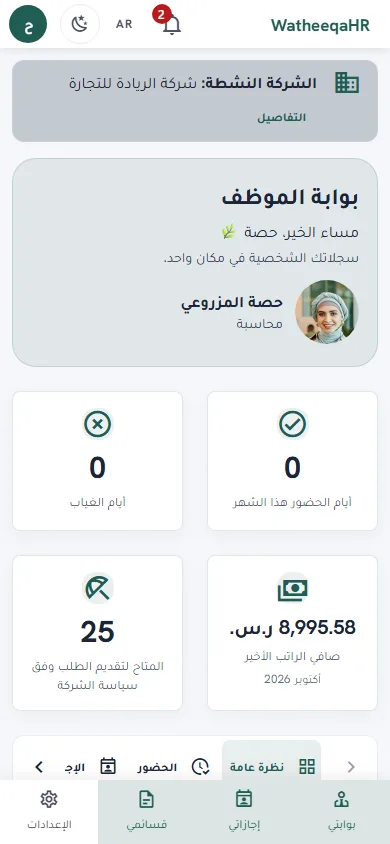
The employee sees their company, job details, leave balances and latest net pay on one screen.
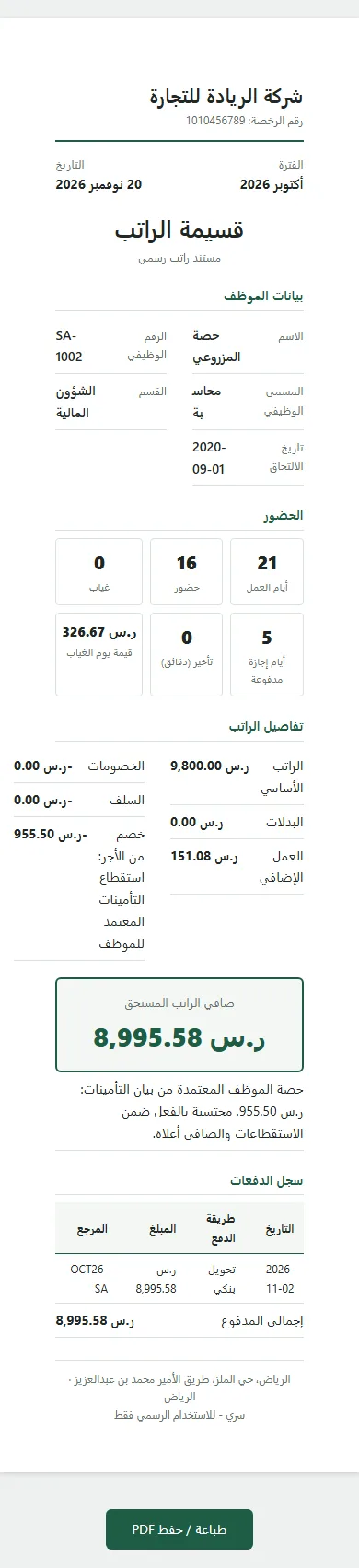
Tap view payslip to open earnings, deductions and net pay, then print it or save it as a PDF.
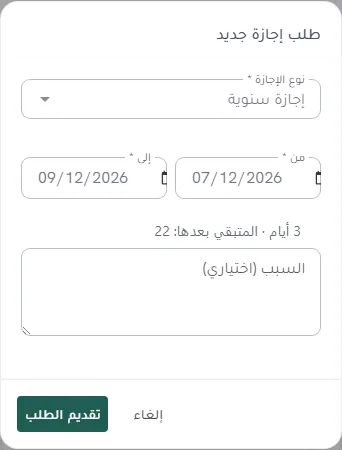
Choose the leave type and dates. The counted days and the remaining balance appear before you send the request.
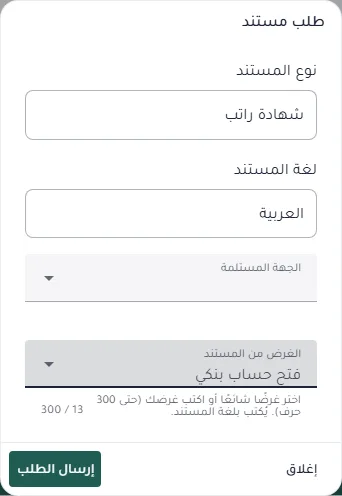
Choose a salary certificate, an experience certificate or another letter, write the purpose, then send the request to HR.
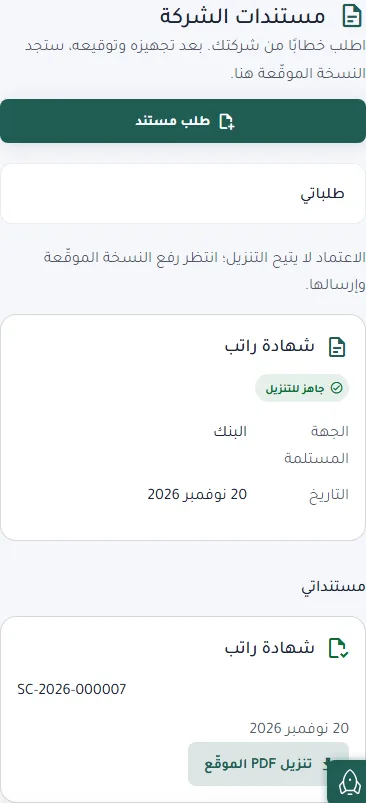
When HR uploads the signed copy it appears under company documents, and the employee downloads it as a PDF.
Screens from a sample company with invented names and data. The portraits are licensed stock photos of models, not real employees.
| Feature | Description |
|---|---|
| Payslips on the phone | Employees open the payslip for each salary period they appear in, see earnings, deductions and net pay, then print it or save it as a PDF from the browser. |
| Attendance, leave and balance | Employees see their attendance record where the company uses attendance import, submit a leave request by type and dates, see the counted days and remaining balance before sending, and withdraw a request while it is pending. |
| Advances and documents | Employees see their advances and the amount still owed, and a read-only list of their registered identity documents such as visas, passports and contracts. |
| Letter requests | Employees request a salary certificate, employment confirmation, experience certificate, travel NOC or company-transfer NOC, add the purpose, follow the status, and cancel while HR has not handled the request. |
| Signed copy in the portal | After HR uploads the signed PDF, it appears under company documents for the employee to download. A letter handed over on paper is recorded with its handover date, with no file to download. |
| Works on the phone | The portal runs in the phone browser and can be added to the home screen as an app (PWA). |
| Each employee sees only their own data | The server checks that every payslip, request and document belongs to the signed-in employee before showing or downloading it, so colleagues' records are never shown. |
| Available on every plan | The portal and letter requests are not limited by plan. When a subscription expires, money actions such as payroll generation and attendance import pause, while the records stay readable. |
Request leave, check your balance and payslip, and ask for a salary letter from your phone without messaging HR.
Review requests, prepare the letter on company letterhead, and upload the signed copy from the request page.
No. Each employee account sees its own payslips, leave, requests and documents only. The server checks ownership of each record before showing or downloading it.
No. It runs in the phone browser and can be added to the home screen as an app.
HR sends an invitation from the employees list. The email contains an activation link, and the employee sets their own password.
No. HR signs the letter outside WatheeqaHR and uploads the signed PDF. Once it is uploaded, the copy appears in the portal and the employee is notified.
Yes. The portal and letter requests are not tied to a paid plan. When a subscription expires, money actions such as payroll generation and attendance import pause, and the records stay readable.
No. Employees can update their contact details only, such as phone numbers and address. Pay, job title and other HR fields stay with HR.
Upload an Excel or CSV export and review the result free — no signup required.
Analyze attendance free Create free account